

Checking VAT IDs
A check validates one VAT or business ID against an official registry. You can start it from the dashboard, the API, or a schedule — the flow and the stored outcome are always the same.
Identifiers, requests, and results
Section titled “Identifiers, requests, and results”Three objects are involved in every check:
flowchart LR
    TI["Tax Identifier
the stored ID"]
    VR["Validation Request
a check in progress"]
    RES["Validation Result
the permanent record"]
    SCH["Schedule"]

    TI --> VR
    VR --> RES
    SCH --> VR
RES --> TI- Tax Identifier — the stored, de-duplicated ID itself. It is created automatically the first time you check an ID and acts as the hub for that ID’s history, schedules, and exports. See Tax Identifiers below.
- Validation Request — a check in progress. Requests are transient: once a check completes (or is cancelled), the request disappears and only the result remains. Open requests are shown on the Overview page and on the identifier’s detail page.
- Validation Result — the permanent, audit-ready record of a completed check, including the registry’s raw response. See Results, Evidence & Reports.
Every check is metered when the request is created — an unreachable registry or a manual review does not consume a second validation.
Starting a check
Section titled “Starting a check”Start a single check from VAT Checker → Overview → New validation (or from an identifier’s detail page, which pre-fills the ID). Batches are available via the API.
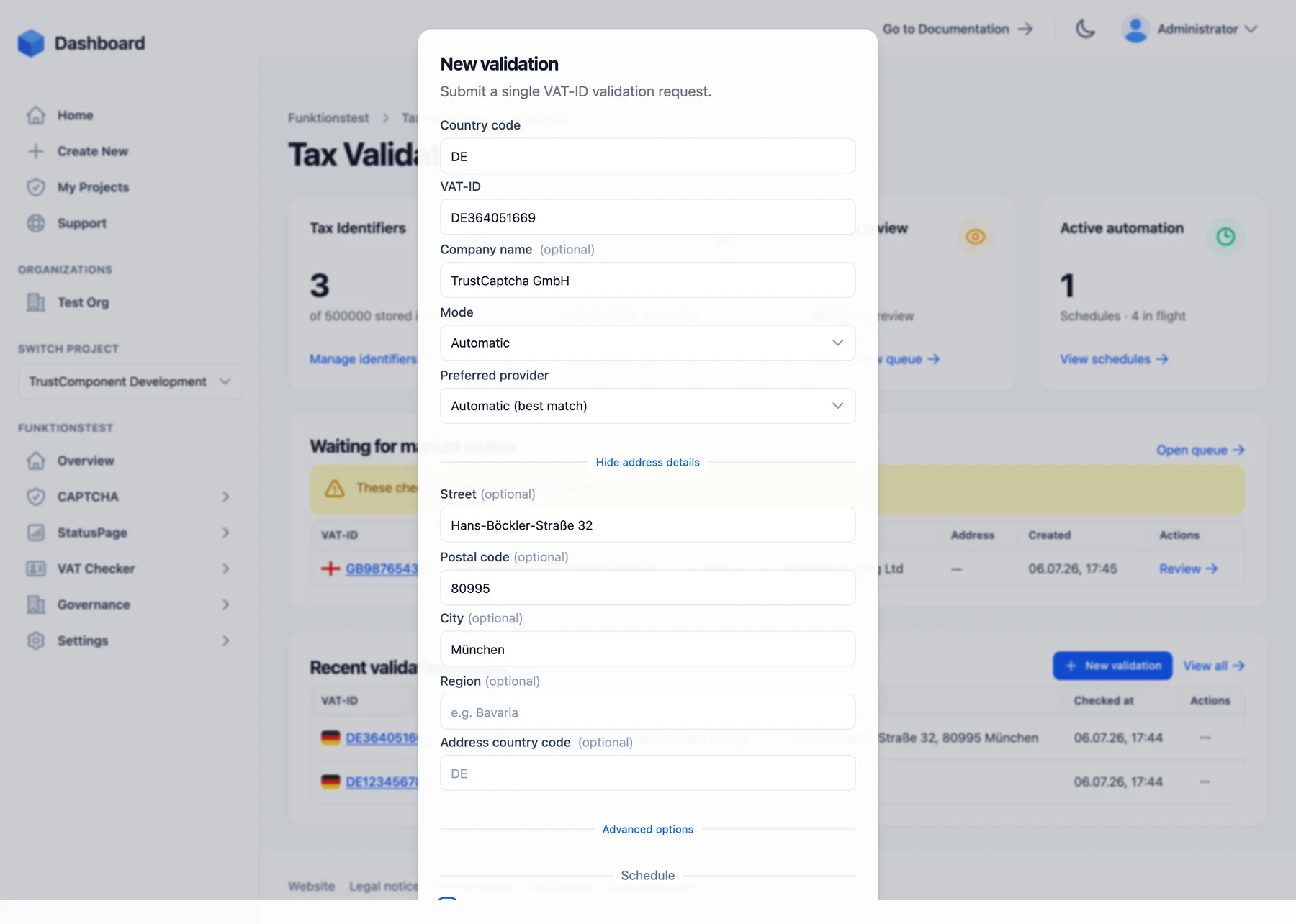
| Field | Required | Notes |
|---|---|---|
| Country code | Yes | 2-letter ISO code (e.g. DE, GB, CH). Determines the ID scheme and registry. |
| VAT-ID | Yes | The ID to check. Spaces, dots, dashes, and underscores are stripped and letters uppercased — DE 123.456-789 and de123456789 are the same ID (max. 20 characters after normalization). |
| Company name | No | Max. 256 characters. Enables company-name matching against the registry record. |
| Mode | Yes | Automatic (query the registry) or Manual (send straight to the Manual Review Queue). Defaults to the mode set in Settings. |
| Preferred provider | No | Pin a specific registry instead of automatic routing. Only providers included in your plan are listed. |
Add address details (optional) enables address matching:
| Field | Constraints |
|---|---|
| Street | Max. 256 characters |
| Postal code | Max. 32 characters |
| City | Max. 128 characters |
| Region | Max. 128 characters |
| Address country code | 2 letters |
Advanced options:
| Field | Purpose |
|---|---|
| Requester VAT-ID | Your own VAT ID. Required for Germany’s BZSt qualified confirmation and forwarded to VIES qualified checks. |
| Idempotency key | Max. 128 characters. A retried request with the same key isn’t processed twice. |
| Correlation ID | Max. 128 characters. Your own tracing ID, echoed back on the result. |
If your plan includes scheduled validation, the modal also offers “Repeat this validation on a schedule” — this creates a schedule (monthly, quarterly, or yearly) for the same ID in one step.
Via the API you can additionally attach customer metadata: up to 20 key/value pairs (keys 1–64 characters, a-z0-9_-; values up to 512 characters) stored with the request and result.
Supported ID schemes
Section titled “Supported ID schemes”The 2-letter country code determines the scheme — which normalization applies and which registry can answer:
| Scheme | Country codes | Normalized form | Automatic source |
|---|---|---|---|
| EU VAT | All 27 EU states + XI (Northern Ireland); Greece is EL | Country prefix added if missing (DE…) | VIES (or BZSt) |
| UK VAT | GB | GB prefix added if missing | HMRC |
| Swiss UID | CH | CHE prefix + 9 digits | Swiss UID registry (Zefix) |
| Norwegian Organization Number | NO | 9 digits | Brønnøysund (BRREG) |
| Australian Business Number | AU | 11 digits | ABR |
| New Zealand Business Number | NZ | 13 digits | NZBN |
| Singapore UEN | SG | as entered | — manual only |
| Malaysian TIN | MY | as entered | — manual only |
| Indian GSTIN | IN | as entered | — manual only |
| Canadian Business Number | CA | as entered | — manual only |
| Other | any other code | as entered | — manual only |
Schemes without an automatic source can still be stored and checked — the request goes to manual review (or completes as Not supported if manual-review fallback is disabled).
Registries & providers
Section titled “Registries & providers”Each automatic check is answered by one provider. All registry calls time out after 10 seconds and store the registry’s raw response as evidence.
| Provider | Covers | What it returns |
|---|---|---|
| VIES (EU) | EU VAT | Valid/invalid; usually the registered name and address; a consultation number as source reference. With company name or address in the request it performs a qualified check and returns per-field match verdicts. Some member states withhold name/address data. |
| BZSt (Germany) | EU VAT outside Germany, queried by a German company | Germany’s qualified confirmation (eVatR). Used automatically when your requester VAT-ID starts with DE and the target is a non-German EU ID. Returns valid/invalid plus per-field match verdicts — but never the counterparty’s stored record itself. |
| HMRC (UK) | UK VAT | Valid/invalid, registered name and address. |
| Swiss UID | Swiss UID (CHE + 9 digits) | Checks the UID register (Zefix); valid while the company is active. Returns name and address. |
| Brønnøysund (Norway) | Norwegian org. numbers (9 digits) | Valid unless deregistered; returns name and address. |
| ABR (Australia) | ABN (11 digits) | Valid while the ABN is active; returns entity name, state, and postcode, plus GST registration status as a provider message. |
| NZBN (New Zealand) | NZBN (13 digits) | Valid while registered; returns the entity name (no address). |
| Manual | anything | A human verdict recorded via manual review or Record result. |
How a check runs
Section titled “How a check runs”A request moves through these statuses:
| Status | Meaning |
|---|---|
| Pending | Accepted, waiting for a worker (picked up within ~15 seconds). |
| Processing | The registry is being queried. |
| Waiting for retry | The registry was unavailable — the check will retry automatically. |
| Waiting for manual review | A human needs to decide — see Manual Review. |
| Completed | Finished; the request is replaced by its result. |
| Cancelled | Cancelled before completion (API only); no result is produced. |
Retries: when a registry is down, times out, rate-limits, or errors, the check retries automatically up to 5 attempts with increasing backoff — after 1, 5, 15, 60, and 240 minutes. A check stuck in Processing for more than 5 minutes (e.g. a crashed worker) is safely re-queued.
When all retries fail (or the scheme has no automatic provider):
- with “Send to manual review when an automatic validation fails” enabled (the default, see Settings) the request moves to the Manual Review Queue and notifies your recipients;
- otherwise a result is stored with the failure outcome (e.g. Source unavailable), so the attempt is still on record.
Reading the outcome
Section titled “Reading the outcome”Every completed check produces exactly one of five outcomes:
| Outcome | Meaning |
|---|---|
| Valid | The registry confirmed the ID. |
| Invalid | The registry rejected the ID (not registered, deregistered, or inactive). |
| Unknown | No verdict could be reached. |
| Source unavailable | The registry couldn’t be reached (after all retries). |
| Not supported | No registry can check this scheme automatically. |
Alongside the outcome, the result records a provider status — what technically happened at the registry: Success, Invalid input, Source timeout, Source unavailable, Rate limited, Authentication failed, Technical error, Not supported, or Not used (manual results).
Company & address matching
Section titled “Company & address matching”If you provide a company name or address, the result includes a match verdict per field — for the company name, the overall address, and each address component (street, postal code, city, region, country):
| Match status | Meaning |
|---|---|
| Match | Registry data confirms your value. |
| No match | Registry data contradicts your value. |
| Partial match | Some address fields match, others don’t (overall address only). |
| Not requested | You didn’t provide this field. |
| Not provided | You provided it, but the registry returned no data for it. |
| Unknown | Couldn’t be evaluated — e.g. the outcome wasn’t Valid. |
How verdicts are computed:
- Where the registry itself evaluates matches (VIES qualified checks, BZSt), its verdict is used directly.
- Otherwise your value is compared case-insensitively against the registry’s returned record.
- If the outcome isn’t Valid, all match fields are Unknown.
- The overall address verdict aggregates the field verdicts: any No match ⇒ No match; all evaluated fields matching ⇒ Match; a mix ⇒ Partial match.
Tax Identifiers
Section titled “Tax Identifiers”Every ID you check is stored once under VAT Checker → Tax Identifiers — the same ID checked five times is one identifier with five results.
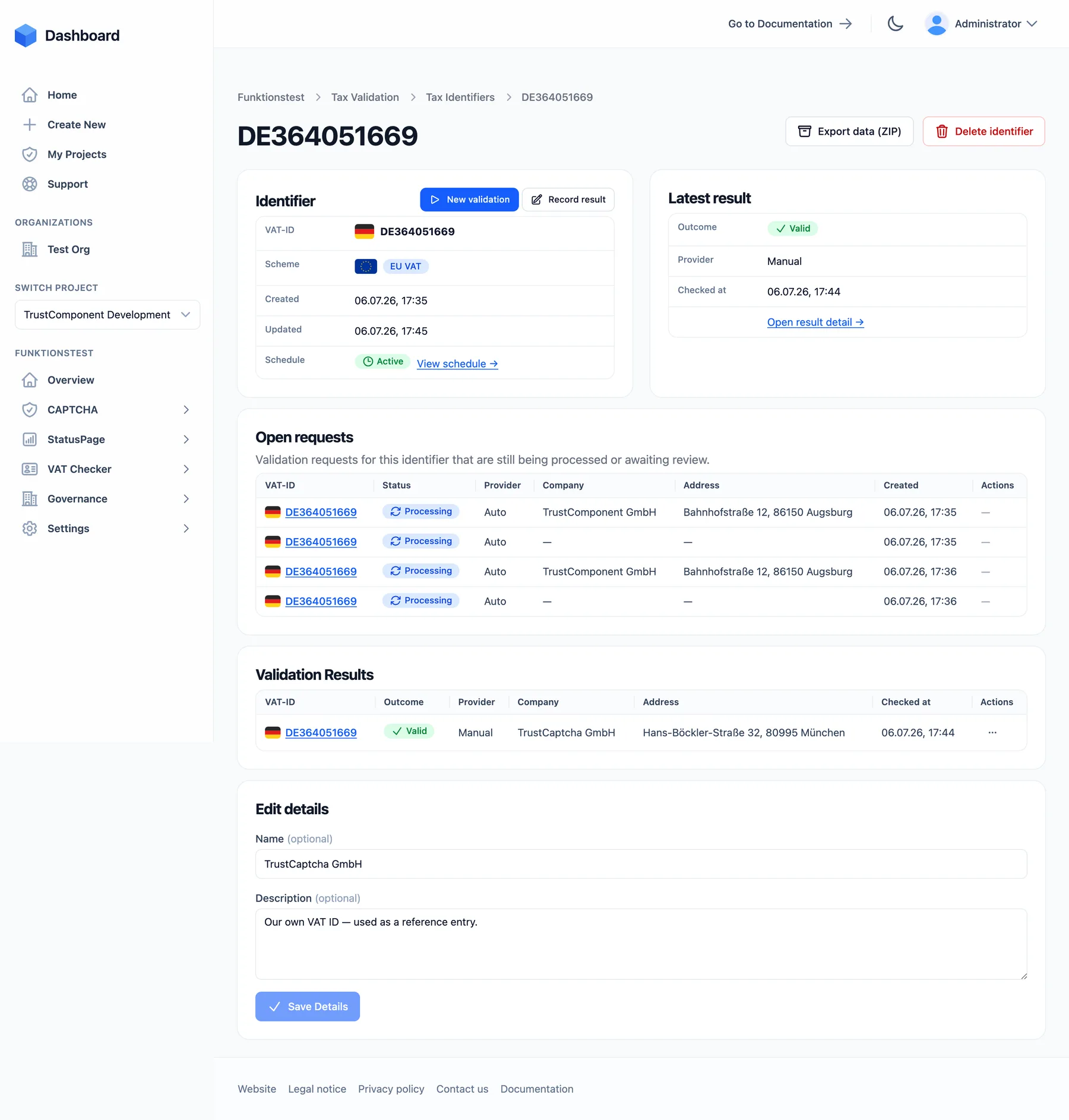
On an identifier’s detail page you can:
- Start a new validation or record a result for this ID (pre-filled).
- See the latest result, any open requests, the full result history, and whether a schedule is active.
- Give the identifier a name (max. 128 characters) and description (max. 1,024 characters) — the name appears in the identifiers list.
- Export data (ZIP) — a combined report over all of this ID’s checks (plan feature, see Results).
- Delete the identifier — this permanently removes the identifier and everything linked to it: requests, results, evidence, and schedules. You must type the ID to confirm.
The number of stored identifiers is a plan limit, shown as a quota badge (e.g. 2 / 500 identifiers) on the Tax Identifiers page.

