

Status Pages
A status page is the public face of your monitoring: it shows the live status and 90-day uptime history of the services you choose, plus current and planned incidents. Visitors can subscribe to updates. You can run several status pages per Project — say, a public one for customers and a restricted one for internal systems — each with its own services, branding, and access rules.
Manage pages under Monitoring → Status Pages.
Organization slug & page URLs
Section titled “Organization slug & page URLs”Every status page is reachable under up to three URLs:
| URL | Format | Availability |
|---|---|---|
| Short URL | https://status.trustcomponent.com/s/<public-id>/<page-slug> | Always |
| Organization URL | https://status.trustcomponent.com/<org-slug>/<page-slug> | After you set an organization slug |
| Custom domain | https://status.your-company.com/ | Plan feature, after DNS verification |
The organization slug (e.g. my-company) is set once for your whole monitoring, in Organization Settings on the Status Pages screen. Choose it carefully — it cannot be changed later, because it becomes part of every page URL.
Slugs (organization and page) may contain lowercase letters, numbers, and hyphens (max. 50 characters). Changing a page slug is possible as a plan feature; the old slug then permanently redirects to the new one.
Creating a status page
Section titled “Creating a status page”Create Status Page:
| Field | Required | Constraints |
|---|---|---|
| Name | Yes | 3–50 characters (internal name) |
| Short description | No | Max. 256 characters |
| Page slug | Yes | Unique within your organization |
| Services | Yes | Which services the page shows |
Design, access, and domain are configured afterwards on the page’s detail page. Open Status Page always opens the best available URL (custom domain → organization URL → short URL). Deleting a page also deletes the subscribers tied to it.
Services on the page
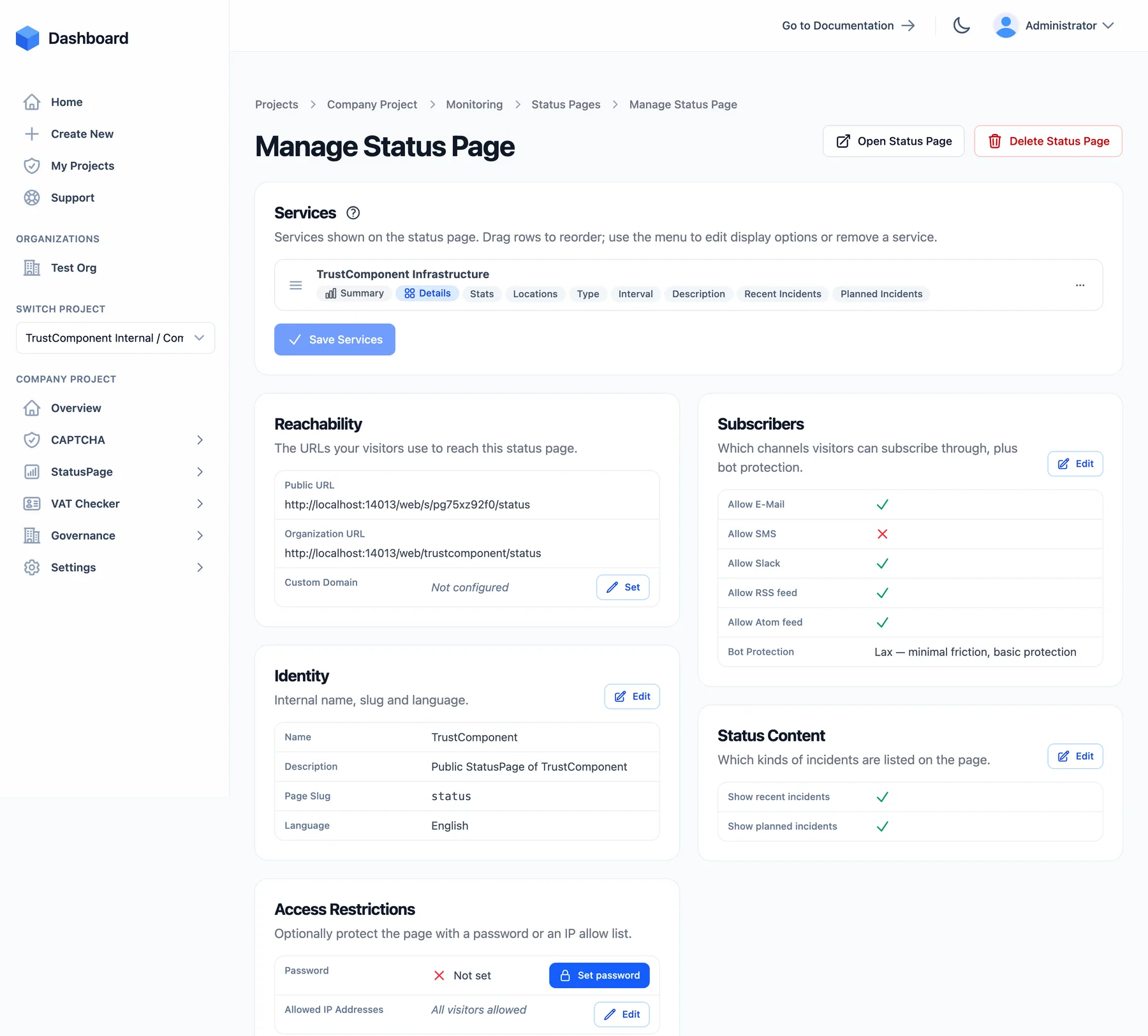
Section titled “Services on the page”The Services section lists the services shown, in drag-to-reorder order. Per service you control:
- Show monitor summary — the aggregated uptime/health summary.
- Show detail panel (plan feature) — a per-service detail view with individually toggleable panels: uptime/response-time stats, locations, monitor type, check interval, description, recent incidents, and planned incidents.
Removing a service from a page never deletes the service itself.
Access restrictions
Section titled “Access restrictions”By default a status page is public. Two mechanisms restrict access (combinable):
- Password protection — a page-wide password (4–128 characters). Once saved it can’t be displayed again, only replaced or removed.
- IP allow list (plan feature) — comma- or whitespace-separated IP addresses or CIDR ranges; empty means all visitors allowed.
The resulting access mode (Public, Password, IP filter, IP filter & password) is shown as a badge in the pages list.
Subscribers & feeds
Section titled “Subscribers & feeds”In Subscriber Settings you decide how visitors may follow the page:
- Email, SMS, and Slack subscriptions (each toggleable; availability depends on your plan’s subscriber types)
- RSS and Atom feeds
- Bot protection for the subscribe forms via TrustCaptcha: Off, Lax (minimal friction), Balanced (recommended), Strict (maximum protection)
Legal notice and privacy-policy URLs (see below) must be set before subscriptions can be enabled — subscriber emails must carry them.
See Subscribers for the confirmation flow and per-subscriber notification preferences.
Branding & appearance
Section titled “Branding & appearance”| Setting | Notes |
|---|---|
| Header title | Max. 50 characters, shown next to the logo; empty renders the logo alone |
| Logo / dark-mode logo | PNG, JPEG, WebP, or SVG, max. 1 MB each |
| Favicon | ICO, max. 1 MB |
| Primary color | Hex color (plan feature, default #2563eb) |
| Theme | Match visitor system preference / always light / always dark |
| Language | English, Deutsch, Français, Español, Italiano, Português, Nederlands, Polski, Svenska, Dansk |
| Hide TrustComponent branding | White-label, plan feature |
| Show recent / planned incidents | Toggle the incident sections of the page |
Additional sections (plan features):
- Legal settings — imprint and privacy-policy URLs, shown in the page footer and subscriber emails.
- Mail settings — sender name and reply-to address for subscriber emails.
- SEO — hide from search engines, custom meta title (falls back to page name) and description (also used for OpenGraph).
- Social links — footer icons for 21 platforms (GitHub, X, LinkedIn, Mastodon, Bluesky, Discord, WhatsApp, …), drag to reorder.
- Footer links — free-form label + URL entries, drag to reorder.
Custom domain
Section titled “Custom domain”Serve the page from your own domain (plan feature):
- Enter the domain (e.g.
status.my-company.com) on the page’s detail page. - Create the displayed CNAME record at your DNS provider — it points your domain to a unique default hostname we assign to the page.
- Click Verify Domain. Verification checks the CNAME chain and that your domain’s CAA policy (if any) allows Let’s Encrypt — the TLS certificate is then issued automatically.
Verification states: Pending → Verified (or Failed — fix the DNS record and verify again).
Limits
Section titled “Limits”- Number of status pages is a plan limit (badge on the pages page, e.g.
1 / 3 status pages). - One page slug maps to at most one page per organization — including old, redirecting slugs.
- Managing pages requires the member or admin role.

