

Incidents
Incidents inform your users and customers about disruptions or planned maintenance affecting your services. An incident is assigned to one or more services and appears on every status page that shows those services. Subscribers of those pages are automatically notified when you create, update, and resolve it.
While alerts notify your team the second something breaks, incidents are your communication timeline to the outside — what happened, what you’re doing about it, and when it’s fixed.
Creating an incident
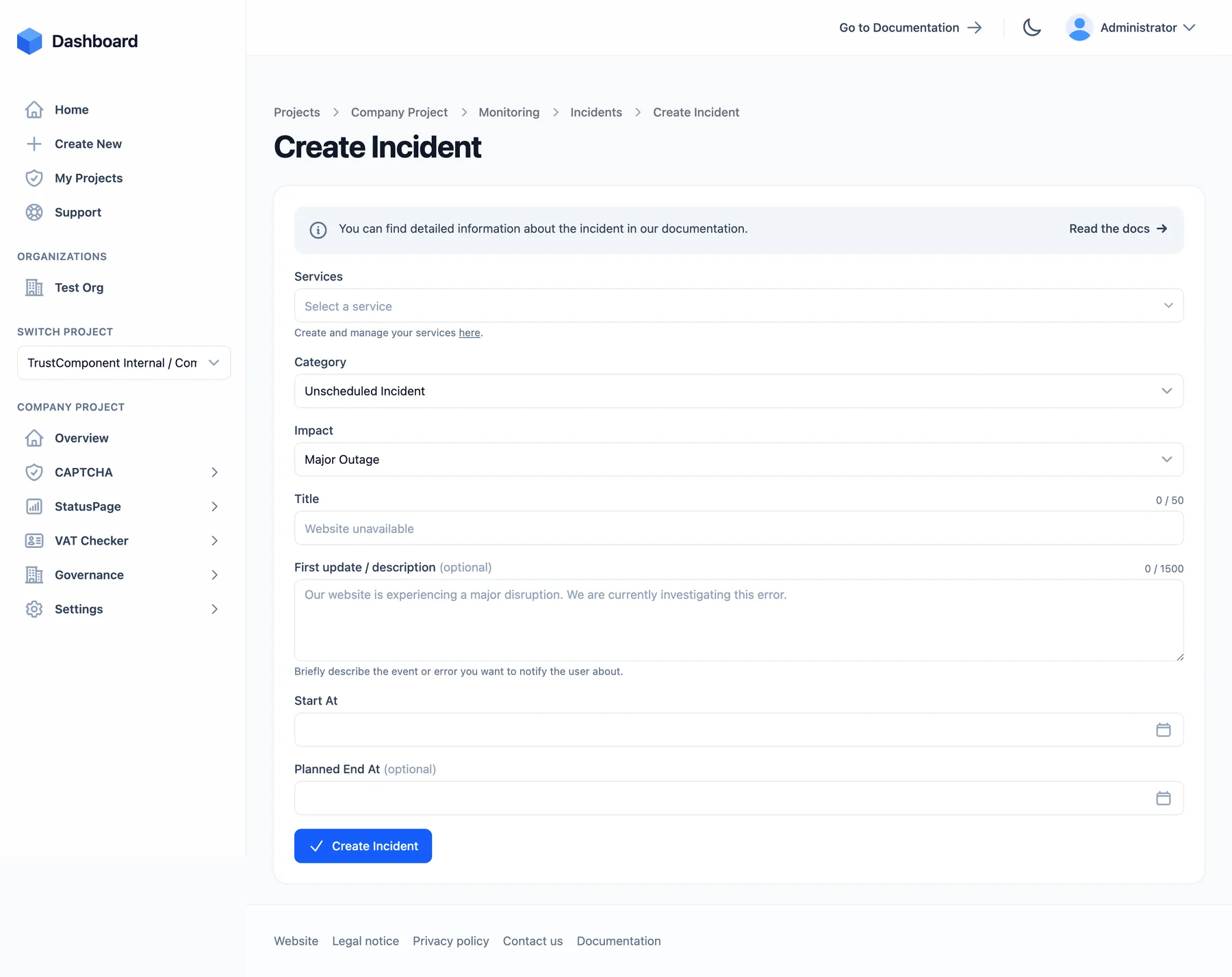
Section titled “Creating an incident”Under Monitoring → Incidents → Create Incident:
| Field | Required | Constraints |
|---|---|---|
| Services | Yes | One or more affected services |
| Category | Yes | Unscheduled Incident (default), Scheduled Maintenance, Informational, Security Event |
| Impact | Yes | Operational, Performance Issues, Partial Outage, Major Outage (default) |
| Title | Yes | 3–50 characters, e.g. Website unavailable |
| First update / description | No | Max. 1,500 characters — the first entry of the public timeline |
| Start at | Yes | When the disruption began (can be in the past) |
| Planned end at | No | Mainly for scheduled maintenance |
An Informational incident always has impact Operational — use it for announcements that aren’t a disruption.
Status workflow
Section titled “Status workflow”The category determines the status track. Statuses move forward only:
- Unscheduled Incident / Security Event: Investigating → Identified → Monitoring → Resolved
- Scheduled Maintenance: Scheduled → In Progress → Completed
Resolved / Completed close the incident and record its end time. Closed incidents move to the Completed Incidents list; about a week after closing they are archived and can no longer be updated.
Drafts & automatic incidents
Section titled “Drafts & automatic incidents”Incidents can exist as drafts — invisible on status pages and never notifying subscribers until you hit Publish.
With Automatic incidents enabled on a service (plan feature + per-service toggle), an incident draft is created for you whenever the service enters Partial Outage or Major Outage — titled Outage detected: <service>, with matching impact. Review, edit, and publish it — or ignore it: untouched auto-drafts are cleaned up after 48 hours. If an active incident already covers the service, no duplicate draft is created.
The incident timeline
Section titled “The incident timeline”The incident detail page has two panels: Incident History (the timeline) and Incident Details (the metadata).
Add update posts a new timeline entry:
| Field | Notes |
|---|---|
| Update message | Required, max. 1,500 characters |
| New status | Optionally advance the status in the same update |
| Visibility | Public (shown on status pages) or Internal (team-only; plan feature) |
| Attachments | Files attached to the update (plan feature; count against your storage quota) |
More timeline facts:
- Every property change (impact changed, services changed, title changed, …) is recorded automatically as a timeline entry with old → new value.
- Update messages can be edited afterwards; automatic protocol entries cannot.
- Summary (max. 1,500 chars) is the short public description shown in lists; the postmortem (max. 5,000 chars) is shown after resolution — use it for root-cause analysis and follow-ups.
Merging, exporting, deleting
Section titled “Merging, exporting, deleting”- Merge (plan feature) — merge a duplicate incident into a main incident; its updates are then tracked there. Merged incidents can be unmerged to manage them independently again.
- Export (plan feature) — download the full incident (timeline PDF plus attachments) as a ZIP, e.g. for compliance evidence or customer RCAs.
- Delete — permanently removes the incident and its attachments.
Limits & retention
Section titled “Limits & retention”| Limit | Value |
|---|---|
| Incidents per Project | 2,000 |
| Updates per incident | 500 |
| Attachments per update | 25 (1 MB per file; storage is a plan quota) |
Resolved incidents are removed after your plan’s data-retention period.

