

Alert Channels
When an alarm fires, people and systems are notified through an alert channel. You create channels once, centrally under Monitoring → Alert Channels, and then reference them from the alert rules of your services. One channel can serve any number of rules.
flowchart LR
    R1["Alert rule: shop down"] --> C1["Channel: On-call email"]
    R1 --> C2["Channel: #ops Slack"]
    R2["Alert rule: shop recovered"] --> C2
Creating a channel
Section titled “Creating a channel”Click Create Channel:
| Field | Required | Constraints |
|---|---|---|
| Name | Yes | 3–50 characters |
| Short description | No | Max. 256 characters — who or what gets notified |
| Channel type | Yes | See channel types; only the types included in your plan appear in the dropdown |
| Configuration | Per type | See the per-type setup guides below |
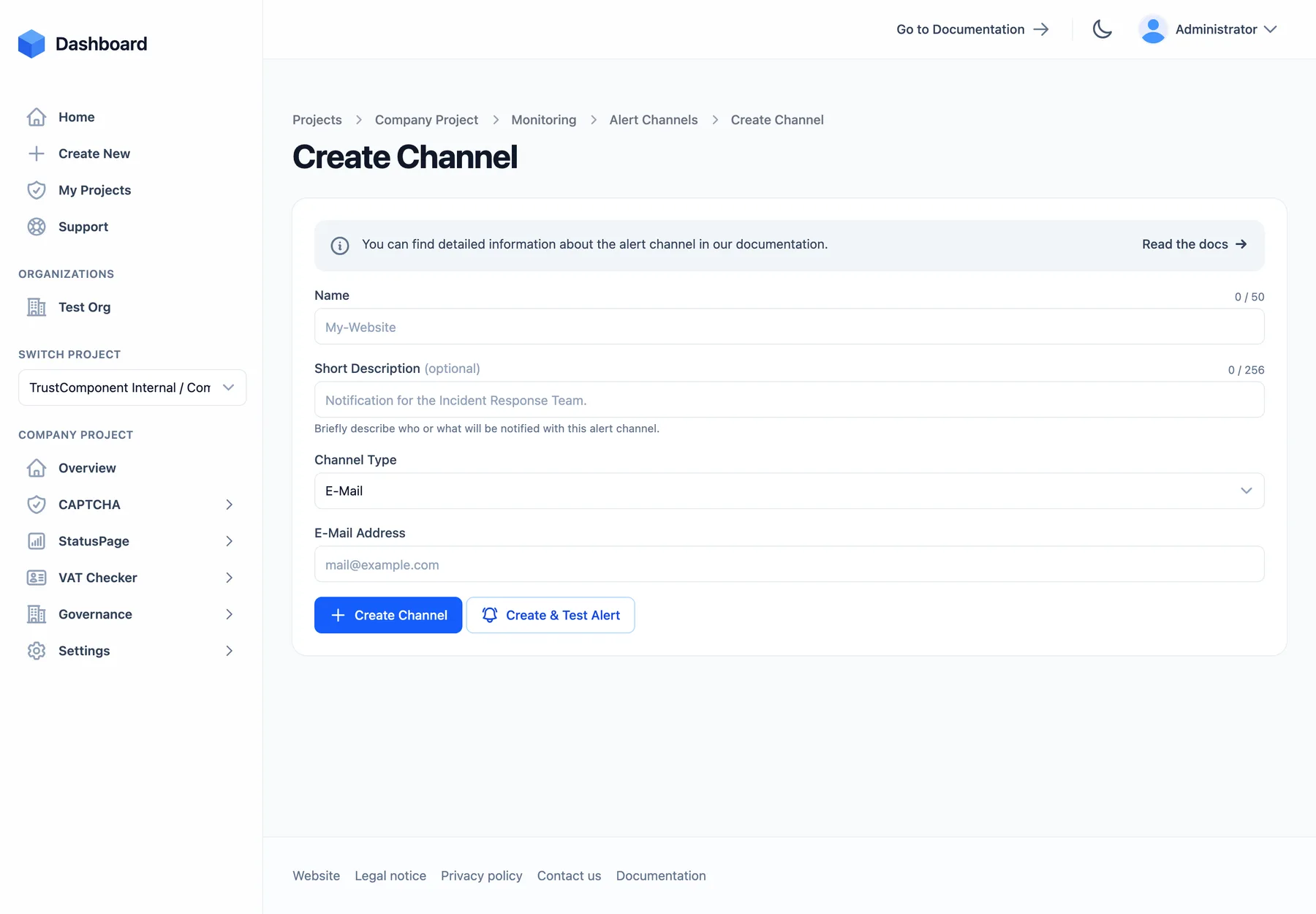
Use Create & Test Alert to create the channel and immediately send a test alert through it — the fastest way to confirm the webhook URL or phone number actually works. If the provider can’t be reached, the channel is still created; you get a warning and can fix the configuration and re-test. Existing channels have a Test Alert action in the row menu and on their detail page — it works even while a channel is disabled, and shows up in the alert log with severity Test.
Channel options
Section titled “Channel options”- Default channel — default channels are automatically pre-selected when you create a new alert rule. Toggle via Set as default in the row menu or the checkbox on the detail page.
- Enable / Disable — a disabled channel stays configured but delivers nothing. If services still reference the channel, disabling asks for confirmation and lists them.
- Duplicate — pre-fills the create form with the channel’s settings (
<name> (Copy)). - Delete — permanently removes the channel. If alert rules reference it, you’ll see a warning listing the affected services: rules that reference only this channel will no longer notify anyone.
The channel type cannot be changed after creation — create a new channel instead.
What a notification contains
Section titled “What a notification contains”Every alert is a short title and message built from the status change: the service name, the previous and the new status, and the UTC timestamp — e.g. a transition from Operational to Major Outage. A test alert simply says that the channel works.
The severity (Info / Warning / Critical) is not a channel property — it’s set per notification step of the alert rule, so the same channel can receive a Warning from one rule and a Critical from another. Test alerts always use Test. How severity is represented depends on the channel:
| Channels | Severity representation |
|---|---|
Subject prefix, e.g. [CRITICAL] … | |
| Teams | Card color — Critical red, Warning yellow, Info blue, Test green |
| PagerDuty | Event severity critical / warning / info (Test → info) |
| Opsgenie | Priority P1 (Critical) / P3 (Warning) / P4 (Info) / P5 (Test) |
| Webhook, Zapier, Splunk | severity field: INFO, WARNING, CRITICAL, TEST |
| Slack, Discord, Telegram, Mattermost, Google Chat, Pushbullet, Pushover, SMS, Voice Call | Message text only — severity is not included |
Channel types & setup
Section titled “Channel types & setup”Sixteen channel types are available. Quick reference — each type is described in detail below:
| Type | Required settings | Optional settings |
|---|---|---|
| Email address | — | |
| SMS | Phone number (international format) | — |
| Voice Call | Phone number (international format) | — |
| Webhook | Webhook URL (http/https) | Custom HTTP headers; additional payload fields |
| Slack | Incoming-webhook URL (https://hooks.slack.com/…) | — |
| Discord | Webhook URL (https) | — |
| Teams | Workflow URL (https) | — |
| Telegram | Bot token, chat ID | — |
| PagerDuty | Integration key | — |
| Opsgenie | API key, API URL | Team, tags, source |
| Zapier | Webhook URL (https) | — |
| Splunk | HEC URL, token | Index, source, sourcetype |
| Mattermost | Webhook URL (http/https) | — |
| Google Chat | Webhook URL (https) | — |
| Pushbullet | Access token, device iden | Channel tag |
| Pushover | Token, user key | — |
Sends a formatted alert email. For real alerts (not tests), the email includes a one-click Acknowledge button that stops further escalation for the current firing cycle — see acknowledging alerts.
- Enter the recipient’s address — a shared inbox or distribution list works well for teams.
- Create & Test Alert and check the inbox (including spam, the first time).
Sends the alert as a text message.
- Enter the phone number in international format with country code and no leading zero, e.g.
+4915123456789(spaces, dashes, and parentheses are tolerated and stripped). - Create & Test Alert — the test text should arrive within seconds.
To keep message volume under control during long outages, cap the escalation step’s Max. repeats in your alert rules.
Voice Call
Section titled “Voice Call”Calls the number and reads the alert out loud (text-to-speech) — the channel that wakes people up when a push notification won’t.
- Enter the phone number in international format, e.g.
+4915123456789. - Create & Test Alert — you’ll receive a call announcing the test alert.
Same advice as SMS: use Max. repeats on escalation steps to limit repeated calls.
Webhook
Section titled “Webhook”Delivers the alert as a JSON POST to any endpoint you run — the integration point for everything that has no dedicated channel type.
{ "title": "Service 'Shop' change status to 'Major Outage'", "message": "The status of the service 'Shop' change from status 'Operational' to 'Major Outage' on '2026-07-16T09:41:00Z UTC'", "severity": "CRITICAL"}- Additional payload data (key/value) is merged into the JSON body — handy for routing hints like
{"env": "prod"}. The reserved fieldstitle,message, andseverityalways win on collision. - Custom HTTP headers are sent with every delivery — e.g. an
Authorizationheader your endpoint requires. - Every request also carries
TC-Webhook-Id,TC-Webhook-Event: monitoring.alert.triggered, andTC-Webhook-Timestampheaders (these override same-named custom headers). - Your endpoint has 10 seconds to respond; any
2xxcounts as delivered.
Setup:
- Expose an HTTPS endpoint that accepts a JSON
POSTand returns2xx(http is allowed for internal systems). - Paste the URL, add any headers or extra payload fields, and Create & Test Alert — then check your endpoint’s log for the
severity: "TEST"request.
Posts the alert as a message into a Slack channel via an incoming webhook.
- Open api.slack.com/apps → Create New App → From scratch → name it (e.g. “TrustComponent Alerts”) and pick your workspace.
- In the app’s settings, open Incoming Webhooks, switch Activate Incoming Webhooks on, then click Add New Webhook to Workspace and choose the target channel.
- Copy the webhook URL — it must be on
hooks.slack.com(e.g.https://hooks.slack.com/services/T…/B…/…); other hosts are rejected. - Paste it into Webhook Url and Create & Test Alert — the test message appears in the chosen channel.
Discord
Section titled “Discord”Posts the alert into a Discord channel.
- In Discord, open Server Settings → Integrations → Webhooks → New Webhook.
- Name it, pick the target channel (avatar and color are up to you), then Copy Webhook URL.
- Paste the URL (https required) and Create & Test Alert.
Microsoft Teams
Section titled “Microsoft Teams”Posts the alert as an Adaptive Card into a Teams channel, color-coded by severity. Teams receives it through a Power Automate workflow — the successor of the retired Office 365 connectors, so use a workflow URL, not a legacy webhook.office.com connector. Workflows require a Microsoft 365 work or school account — they’re not available in the personal (free) version of Teams.
- In Teams, open the target channel → ⋯ (more options) → Workflows.
- Choose the template “Post to a channel when a webhook request is received”, confirm team and channel, and add the workflow.
- Copy the HTTP URL the workflow shows you (typically on
…logic.azure.com). - Paste it into Webhook Url (https required) and Create & Test Alert — the card is posted by the Workflows bot.
Telegram
Section titled “Telegram”Sends the alert as a plain-text message from your own Telegram bot.
- In Telegram, message @BotFather, send
/newbot, and follow the prompts — copy the bot token (123456789:AA…). - Open your new bot’s chat and press Start — or, for a group, add the bot to the group and post a message. A bot can only message chats that have contacted it first.
- Open
https://api.telegram.org/bot<TOKEN>/getUpdatesin a browser and readchat.idfrom the response (group IDs are negative, e.g.-1001234567890). Empty response? New messages can take a few minutes to show up — send another one and reload. - Enter bot token and chat ID, then Create & Test Alert.
PagerDuty
Section titled “PagerDuty”Triggers a PagerDuty incident through the Events API v2.
- In PagerDuty, open Services → your service → Integrations → Add an integration → select Events API V2.
- Copy the 32-character Integration Key, paste it, and Create & Test Alert (the test arrives with severity
info).
Opsgenie
Section titled “Opsgenie”Creates an Opsgenie alert with a severity-mapped priority (see the severity table).
- In Opsgenie, open Settings → Integrations (or Teams → your team → Integrations) → add an API integration with Create and Update Access enabled.
- Copy the API key.
- As Api Url, use
https://api.opsgenie.com— orhttps://api.eu.opsgenie.comif your Opsgenie account is EU-hosted. - Optionally set a team (added as responder), comma-separated tags attached to every alert, and a custom source (default:
monitoring). - Create & Test Alert — the test arrives as priority
P5.
Zapier
Section titled “Zapier”Sends the alert to a Zapier Catch Hook, from where a Zap can route it anywhere Zapier connects to.
- In Zapier, create a new Zap with trigger Webhooks by Zapier → event Catch Hook.
- Copy the generated webhook URL (
https://hooks.zapier.com/hooks/catch/…). - Paste it (https required) and Create & Test Alert — the test request gives Zapier a sample record with the fields
title,message, andseverityto map in your action steps.
Splunk
Section titled “Splunk”Sends the alert to Splunk’s HTTP Event Collector (HEC); it arrives as an event with title, message, and severity fields.
- In Splunk, open Settings → Data inputs → HTTP Event Collector → New Token and complete the wizard. If HEC is disabled, enable it under Global Settings first (default port 8088).
- As Hec Url, enter the full collector endpoint — self-hosted:
https://splunk.example.com:8088/services/collector/event; Splunk Cloud:https://http-inputs-<stack>.splunkcloud.com/services/collector/event. - Paste the generated token. Optionally override the index (otherwise the token’s default index applies), source (default
monitoring), and sourcetype (default_json). - Create & Test Alert, then search your index for the test event.
Mattermost
Section titled “Mattermost”Posts the alert into a Mattermost channel via an incoming webhook.
- In Mattermost, open the product menu (grid icon) → Integrations → Incoming Webhooks → Add Incoming Webhook and pick the target channel. (If Integrations is missing, a system admin must enable incoming webhooks first.)
- Copy the webhook URL and paste it — plain
http://is accepted for self-hosted instances on internal networks. - Create & Test Alert.
Google Chat
Section titled “Google Chat”Posts the alert into a Google Chat space (webhooks are a Google Workspace feature and not available in direct messages).
- In Google Chat, open the space → click the space name → Apps & integrations → Webhooks → Add webhook.
- Name it and copy the generated URL (
https://chat.googleapis.com/v1/spaces/…). - Paste it (https required) and Create & Test Alert.
Pushbullet
Section titled “Pushbullet”Sends the alert as a push note to one of your devices — or to a Pushbullet channel.
- On pushbullet.com, open Settings → Account → Create Access Token and copy it.
- Find your device iden by listing your devices:
curl -H "Access-Token: <token>" https://api.pushbullet.com/v2/devices— copy theidenof the target device. - Optionally set a channel tag — if set, the alert is pushed to that Pushbullet channel instead of the device.
- Create & Test Alert.
Pushover
Section titled “Pushover”Sends the alert as a Pushover notification to your devices.
- Log in at pushover.net — your User Key is shown right on the dashboard.
- Scroll to Your Applications → Create an Application/API Token, name it, and copy the generated API token.
- Enter token and user key, then Create & Test Alert.
Alerts are delivered at Pushover’s normal priority regardless of severity.
Delivery & retries
Section titled “Delivery & retries”- Chat and incident-management channels (Slack, Discord, Teams, Telegram, PagerDuty, Opsgenie, Zapier, Splunk, Mattermost, Google Chat, Pushbullet, Pushover) are called directly, with up to 3 attempts — retried on HTTP 429, 5xx, and network errors. Any
2xxresponse counts as delivered. - E-Mail, SMS, Voice Call, and Webhook run through the TrustComponent notification pipeline: up to 5 attempts with increasing backoff (from about a minute up to several hours), so a temporarily unreachable endpoint still gets the alert.
- Channels are notified independently and in parallel — one failing channel never delays or blocks the others.
- Disabled channels are skipped entirely (test alerts excepted).
Channel activity
Section titled “Channel activity”The detail page of every channel shows its latest alerts — timestamp, severity, title, and message of each delivery — and the channels list shows when each channel was last used. To see alerts across all channels, use the Alerts page.
Limits
Section titled “Limits”- The number of channels is a plan limit — the badge on the channels page shows your usage, e.g.
2 / 5 channels. - Available channel types depend on your plan; types outside your plan simply don’t appear in the type dropdown.
- Two channels with the identical configuration (same type and destination) are rejected — duplicate the name instead, or reuse the existing channel in more rules.
- Creating, editing, testing, and deleting channels requires the member or admin role.

