

TYPO3 CAPTCHA Extension
The following tutorial will guide you on how to integrate the TrustCaptcha CAPTCHA solution into your TYPO3 website to protect it from bots and spam.
Preparation
Section titled “Preparation”You should have already completed the following steps before you start to integrate TrustCaptcha into your TYPO3 website.
Read Get-Started: Get a quick overview of the concepts behind TrustCaptcha and the integration process in get started.
Existing CAPTCHA: If you don’t have a CAPTCHA yet, sign in or create a new user account. Then create a new CAPTCHA.
Existing TYPO3 website: You need a TYPO3 website in which you want to integrate TrustCaptcha.
Supported Extensions
Section titled “Supported Extensions”Our TYPO3 CAPTCHA extension for TrustCaptcha currently supports the following TYPO3 extensions:
- Form
- Powermail
Follow the steps below to integrate the TrustCaptcha CAPTCHA plugin into your TYPO3 website.
1. Installation
Section titled “1. Installation”Install our TYPO3 CAPTCHA plugin via Composer or the traditional method.
Classic Installation
Section titled “Classic Installation”Follow these steps to install the CAPTCHA extension the traditional way:
- Navigate to
Admin Tools → Extensions → Get Extensions. - Click on
Update nowto index the extension index. - Search for the
TrustCaptchaextension and install it.
Composer Installation
Section titled “Composer Installation”Perform the following steps to install the CAPTCHA extension via Composer (Packagist). Use the steps that matches your TYPO3 version:
TYPO3 v12+
composer require trustcomponent/trustcaptcha-typo3:^3.0 --with-all-dependenciesphp vendor/bin/typo3 extension:setup --no-interactionphp vendor/bin/typo3 cache:flushphp vendor/bin/typo3 cache:warmupTYPO3 v11
composer require trustcomponent/trustcaptcha-typo3:^3.0 --with-all-dependenciesphp vendor/bin/typo3cms cache:flushYou can find our TrustCaptcha TYPO3 package on Packagist.
2. Configuration
Section titled “2. Configuration”Follow these steps to configure TrustCaptcha in your TYPO3 instance:
- Login as an admin to your TYPO3 instance.
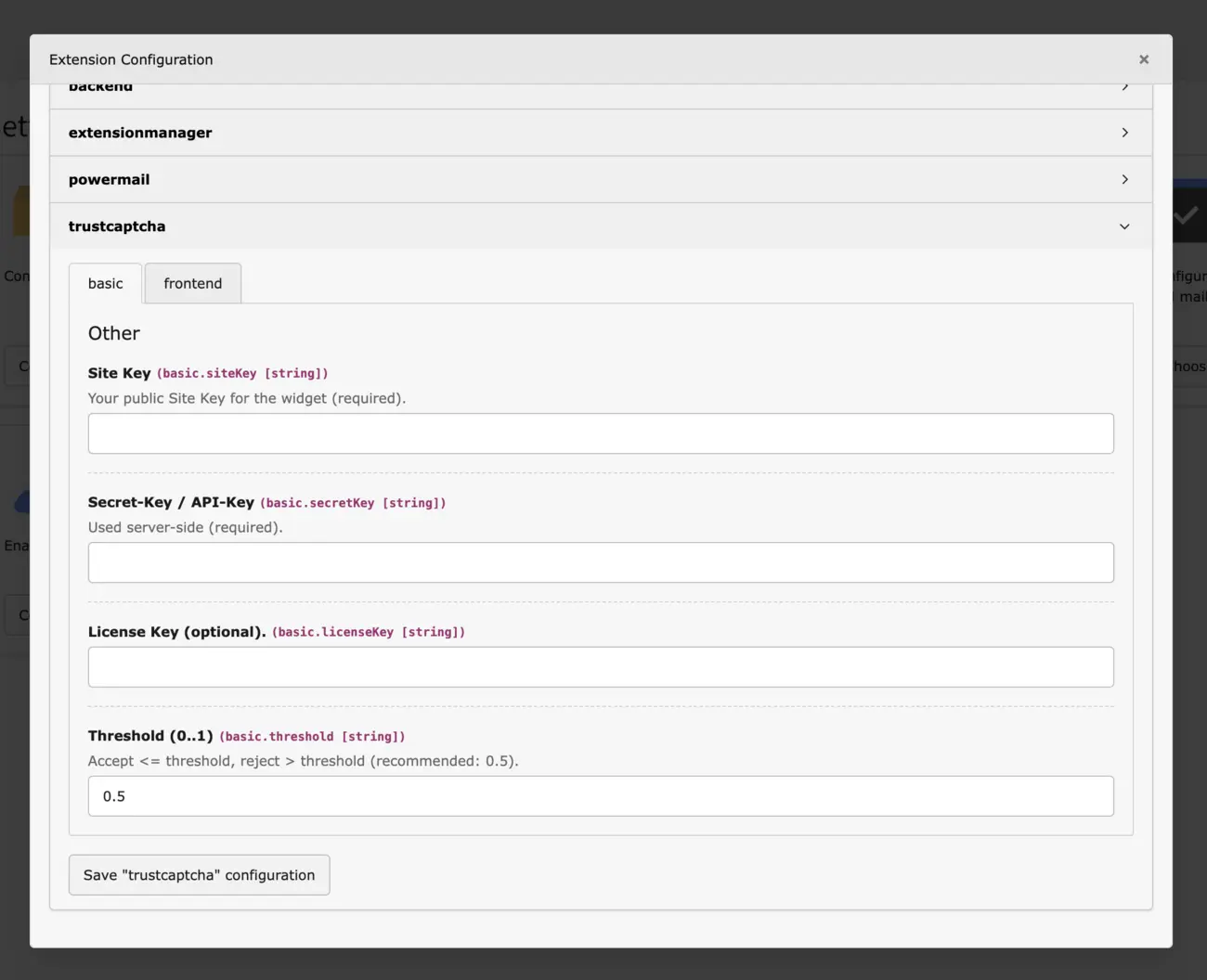
- Navigate to
Admin Tools → Settings → Extension Configuration → trustcaptcha. - Enter the
site-keyandapi-keyof your CAPTCHA. You can find and manage these keys in your CAPTCHA settings. - Optional: Adjust additional settings such as language, theme, or threshold as needed.
Integrate TrustCaptcha into your existing form in just a few steps:
- Navigate to
Web → Formsand edit the form into which you want to integrate TrustCaptcha. - Click on
Create new element. Select theTrustCaptchaelement from the list of available form elements and insert it into your form. - Save your changes.
Your form is now protected with TrustCaptcha. When your form is submitted by a user, the CAPTCHA result is verified. If verification is successful, the finishers are executed. If the CAPTCHA fails, the user will see the form again with an error message.
The video clearly shows the most important steps. It uses a sample form and TYPO3 13.4.
Powermail
Section titled “Powermail”Integrate TrustCaptcha into your existing Powermail form in just a few steps:
- Navigate to your Powermail form and edit it.
- Click on
Create new Field. - Assign a label such as Captcha and select
TrustCaptchaas the type. - Save your changes.
Your form is now protected with TrustCaptcha. When your form is submitted by a user, the CAPTCHA result is verified and, if successful, the sending process of your Powermail form continues. If the CAPTCHA fails, the user will see the form again with an error message.
The video clearly shows the most important steps. It uses a sample form and TYPO3 13.4.
Next steps
Section titled “Next steps”Once you have successfully installed and configured TrustCaptcha on your website, you can use TrustCaptcha to its full extent. However, we still recommend the following additional technical and organizational measures:
Security rules: You can find many security settings for your CAPTCHA in the CAPTCHA settings. These include, for example, authorized websites, CAPTCHA bypass for specific IP addresses, bypass keys, IP based blocking, geoblocking, individual difficulty and duration of the CAPTCHA, and much more. Learn more about the security rules.
Data protection: Include a passage in your privacy policy that refers to the use of TrustCaptcha. We also recommend that you enter into a data processing agreement with us to stay GDPR-compliant. Learn more about data protection.
Accessibility: Customize TrustCaptcha to your website so that your website is as accessible as possible and offers the best possible user experience. More about accessibility.
Testing: If you use automated testing, make sure that the CAPTCHA does not block it. Learn more about testing.

