

CraftCMS CAPTCHA Plugin
The following tutorial will guide you on how to integrate the TrustCaptcha CAPTCHA solution into your CraftCMS website to protect it from bots and spam.
Preparation
Section titled “Preparation”You should have already completed the following steps before you start to integrate TrustCaptcha into your CraftCMS website.
Read Get-Started: Get a quick overview of the concepts behind TrustCaptcha and the integration process in get started.
Existing CAPTCHA: If you don’t have a CAPTCHA yet, sign in or create a new user account. Then create a new CAPTCHA.
Existing CraftCMS website: You need a CraftCMS website in which you want to integrate TrustCaptcha.
Supported CraftCMS Plugins
Section titled “Supported CraftCMS Plugins”Our CraftCMS CAPTCHA plugin for TrustCaptcha can be manually integrated into any use case in CraftCMS. Additionally, we provide special support for the following CraftCMS plugins:
- User Registrations
- Contact Form
- Formie
Follow the steps below to integrate the TrustCaptcha CAPTCHA plugin into your CraftCMS website.
1. Installation
Section titled “1. Installation”Install the plugin using Composer:
composer require trustcaptcha/trustcaptcha-craftcmsYou can find our TrustCaptcha CraftCMS package on Packagist.
2. Configuration
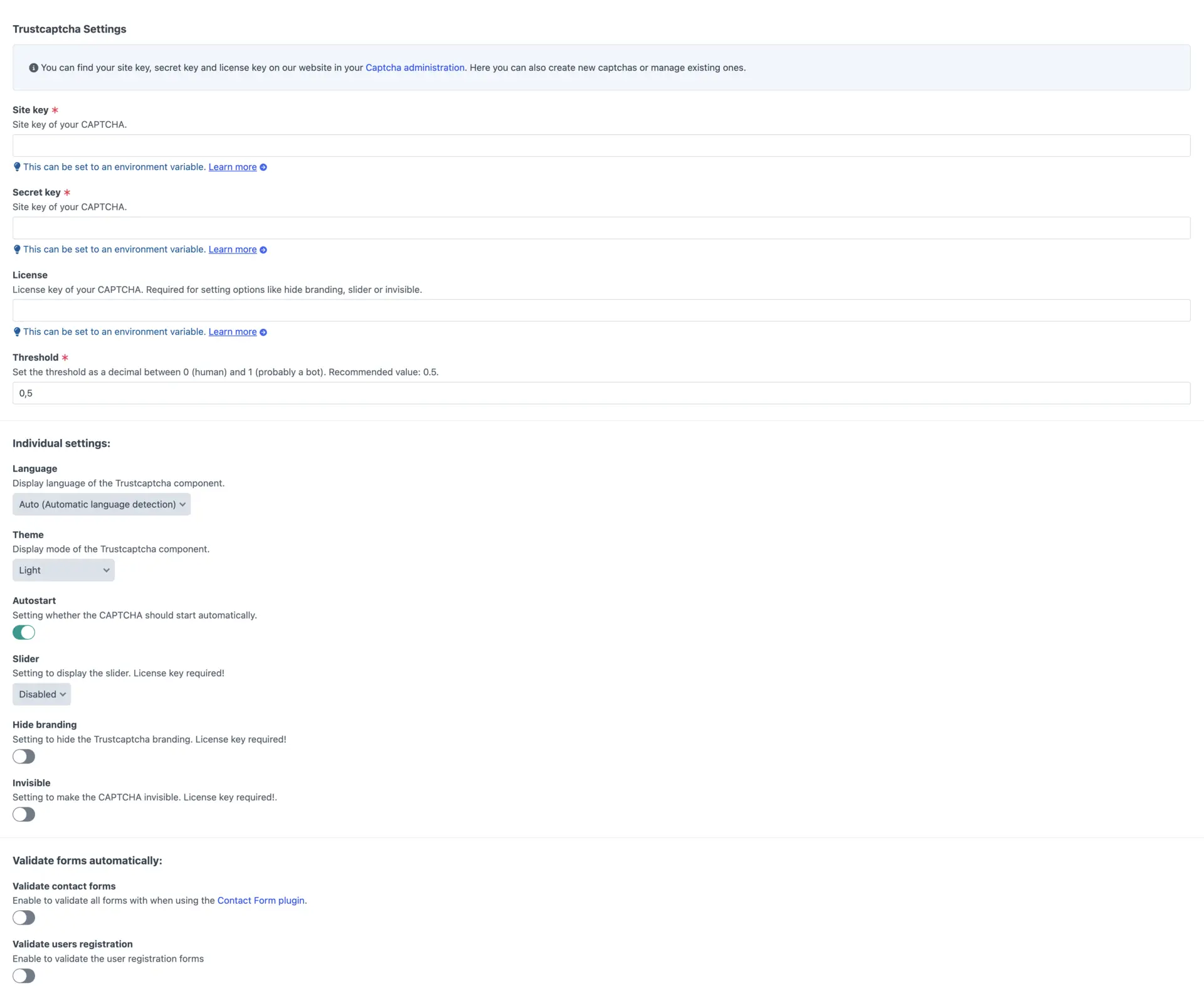
Section titled “2. Configuration”Configure the plugin under Settings → Plugins → TrustCaptcha. Providing a site-key and api-key is required. You can find and manage these keys in your CAPTCHA settings.
3. Integration
Section titled “3. Integration”Next, insert the following code at all desired locations within form elements.
Template
{{ head() }}   {# Load javascript files like our ones #}
<form>  <!-- your existing form -->
  {{ craft.trustcaptcha.insertCaptcha() | raw }}
  <!-- stuff like submit button --></form>
Finally, you need to validate the result. Plugins like Contact Form or User Registration are natively supported and can be activated in the TrustCaptcha plugin settings. For all other use cases, you can manually validate the result using the following code.
Template
{{ craft.trustcaptcha.validateCaptcha() }}Formie
Section titled “Formie”TrustCaptcha can be integrated into Formie. To do this, install TrustCaptcha and Formie. Then go to the settings Settings → Plugins → Formie → Captchas. Activate and configure TrustCaptcha here. Providing a site-key and api-key is required. You can find and manage these keys in your CAPTCHA settings.
Now you need to — like any other Captcha plugin in Formie — activate TrustCaptcha per form. To do this, go to the settings of your created form and navigate to Integrations. Activate the*Captcha there.
Next steps
Section titled “Next steps”Once you have successfully installed and configured TrustCaptcha on your website, you can use TrustCaptcha to its full extent. However, we still recommend the following additional technical and organizational measures:
Security rules: You can find many security settings for your CAPTCHA in the CAPTCHA settings. These include, for example, authorized websites, CAPTCHA bypass for specific IP addresses, bypass keys, IP based blocking, geoblocking, individual difficulty and duration of the CAPTCHA, and much more. Learn more about the security rules.
Data protection: Include a passage in your privacy policy that refers to the use of TrustCaptcha. We also recommend that you enter into a data processing agreement with us to stay GDPR-compliant. Learn more about data protection.
Accessibility: Customize TrustCaptcha to your website so that your website is as accessible as possible and offers the best possible user experience. More about accessibility.
Testing: If you use automated testing, make sure that the CAPTCHA does not block it. Learn more about testing.

